How to Fix TTLock App Not Detecting WK3 Wireless Keypad? (Step-by-Step Troubleshooting)
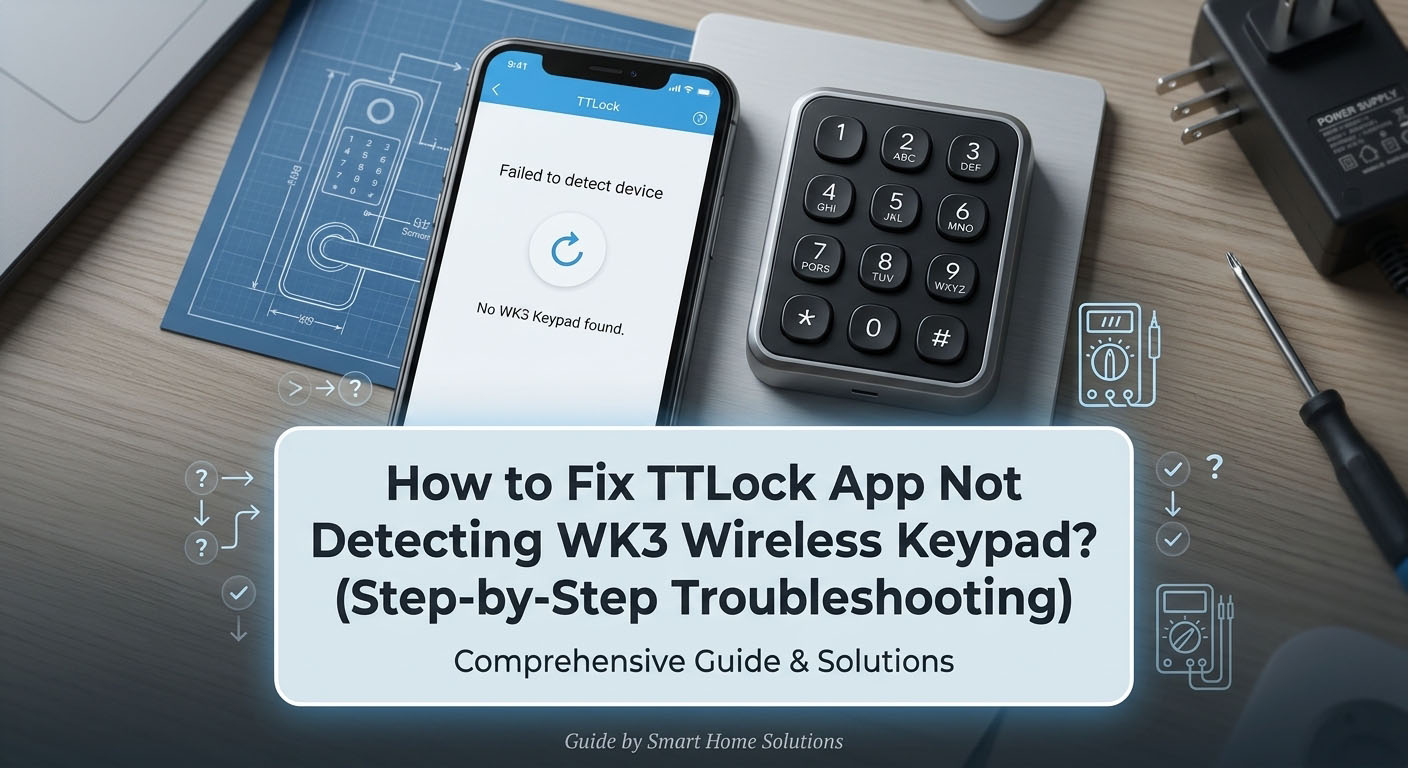
If you are setting up your S4A WK3 TTLock Multi-function Wireless Keypad and notice that the TTLock App cannot detect or find the device during the pairing process, don't worry. This is a common setup issue usually related to device pairing mode, Bluetooth permissions, or selecting the wrong category in the app.
Follow this step-by-step troubleshooting guide to quickly get your WK3 wireless keypad connected.
Step 1: Check Power Supply & Remove Battery Pull-Tab
Before pairing, ensure the device is properly powered:
Remove Battery Insulator: Check the battery compartment to ensure any plastic insulation pull-tab has been completely removed.
Test Power Output: Press any button on the keypad. The LED indicator light or button backlight should light up. If it does not light up, please replace the batteries (AAA) or re-insert them to ensure proper contact.
Step 2: Turn On Phone Bluetooth & Location Permissions
(This is the most common reason for detection failure)
Both iOS and Android systems require specific permissions for the TTLock App to scan nearby Bluetooth devices:
Turn ON Bluetooth & Location (GPS) in your phone's quick settings.
Go to your phone's Settings -> Apps -> TTLock -> Permissions.
Ensure both Bluetooth and Location permissions are set to "Allowed" / "While Using the App".
Step 3: Wake Up Keypad & Select the Correct Device Category
Wireless keypads remain in sleep mode to conserve battery life and will not broadcast Bluetooth signals unless activated.
Open the TTLock App on your smartphone.
Tap the "+" (Add Device) icon in the top left corner.
Select "Keypad" from the device menu (Do NOT select "Lock").
Wake up the WK3 Keypad: Press any key (or touch the keypad face) on the WK3. The keypad lights will flash/turn on, indicating it is actively broadcasting a Bluetooth signal.
Keep your phone within 1–2 meters (3–6 feet) of the keypad. The app will detect the device. Tap "+" next to the found keypad to complete pairing.
Step 4: Perform a Hardware Factory Reset (If Still Not Detected)
If the keypad was previously paired during factory testing or bound to another account, it cannot be discovered until reset:
Remove the back cover / battery compartment lid of the WK3 keypad.
Locate the Reset Button inside the battery compartment.
Press and hold the reset button for about 5 seconds until you hear a long beep or see the LED light flash rapidly.
Try adding the keypad again through the TTLock App following Step 3.
Summary / Still Need Assistance?
By following the steps above, 99% of TTLock keypad detection issues can be resolved quickly.
If your TTLock App still cannot scan the S4A WK3 Wireless Keypad, please contact our technical support team at sales@s4a-access.com or via WhatsApp (+86 134 1050 0721) with a short video of your pairing process. We are here to help!



 العربية
 English
 français
 Deutsch
 русский
 italiano
 español
 português
 Türkçe
 Tiếng Việt
 Indonesia
 شبكة IPv6 مدعومة